맥북 기준 기본 세팅 : chrome 웹 브라우저, vs code editor, spectacle (화면 분할)
vs code editor 단축 기능 (맥북 기준)
| 새 파일 : cmd + N 저장 : cmd + S |
<1> HTML 개념
HTML = Hypertext Markup Language
마크업 언어 : 웹 페이지라는 문서에 마크업(주석)을 단다는 개념으로 이해하기
ex) 과학 연구 논문을 생각해보자. HTML은 1989~1990년에 학술 논문의 구조 설명을 돕고 초기 인터넷에 그 내용을 공유하기 위해 탄생한 언어. 굵은 글씨, 숫자, 다른 페이지나 다른 섹션으로 이어지는 링크, 이탤릭체, 문단 나누기, 문단과 문단 사이에는 간격 존재.
>> 텍스트 콘텐츠를 마크업해서 구조화한다고 생각하자.
<2> 연습 시간
(1) vs code에서 태그 생성 (2가지 방법)
| (1) 여는 코드 <b> 입력 시 vscode가 자동으로 </b> 닫는 코드 생성 (2) b 입력 후 tab 입력 시 <b></b> 자동 생성 |
(2) 모질라 개발자 네트워크 (MDN)
개발자가 개발자를 위해 만든 사이트, 웹 개발에 대한 위키피디아라고 생각하면 된다.
Reference -> Elemet reference : HTML에서 사용할 수 있는 모든 태그가 기록되어 있음.
검색창에는 HTML form mdn 라고 입력하거나, https://developer.mozilla.org/ko/docs/Web/HTML 북마크해두면 좋다.
(3) 태그 연습
<p> : 단락 태그 (텍스트 뿐만 아니라 image나 input도 가능)
<h1> ~ <h6> : 제목 태그 (자동 줄바꿈 기능 존재)
* h1는 하나만 존재해야한다, 한 페이지에 최상위 주제가 두 가지 이상일 수 없기 때문이다.
[막간 기능] : html 연습할 때 좋은 기능
<p>lorem*3</p> <!-- 의미없는 텍스트를 넣어주는 코드. lorem ipsum(채우기용 단락)을 3번 출력해준다. -->
(4) 태그 연습 실습 : https://en.wikipedia.org/wiki/Chicken 위키피디아 글 보면서 대략 연습
<h1>Chicken</h1>

The <b>chicken</b> (Gallus domesticus) is a domesticated species that arose from the red junglefowl, originally from
Asia.

<p>
    They have also partially hybridized with other wild species of junglefowl (the grey junglefowl, Ceylon junglefowl,
    and green junglefowl).[1] Rooster and cock are terms for adult male birds, and a younger male may be called a
    cockerel.
</p>

<h2>terminology</h2>

<p>
	Lorem ipsum dolor sit amet consectetur adipisicing elit. Dolores distinctio perspiciatis quidem, nulla voluptas
    dolorem illum laudantium maxime? Dolores nulla expedita nam veritatis vero eos culpa saepe? Ex, saepe
    velit?Doloremque sunt ullam doloribus recusandae et libero magni voluptates illo asperiores ea ducimus laboriosam ab
    distinctio commodi fuga repellat consequatur repellendus, iusto soluta architecto. Dignissimos consectetur assumenda
    aliquam eos provident. Ut inventore quod explicabo magnam quisquam natus quibusdam, maiores vel vero cumque at qui
    libero consectetur doloribus voluptates deserunt ab deleniti delectus dolores quidem cum rerum. Provident libero
    optio ea.
</p>

<h2>General biology and habitat</h2>

<h3>Behavior</h3>

<h4>Social behaviour</h4>

<h4>Broodiness</h4>

<h5>I AM H5</h5>

<h6>I AM H6</h6>

<p>
	Lorem ipsum dolor sit amet, consectetur adipisicing elit. Nobis velit consequatur dolor rerum numquam eum odio, vel
    illo quia hic sapiente dolore quisquam, voluptatum quibusdam dolores magnam repellat iure autem?
    Iure amet corrupti aspernatur. Error architecto necessitatibus neque dolore omnis porro explicabo beatae assumenda
    tempore, quasi quod asperiores, quia, ex perferendis nostrum modi. Dicta fuga odio cumque dolorem, officiis dolorum!
    Magnam eos unde aperiam suscipit minus culpa alias aliquid similique eaque fugiat atque iure optio fuga magni natus
    error in, porro doloremque ea ut. Deleniti dolores in libero soluta magnam.
</p>
> html 파일 확인 시 출력 화면

(5) 코드 문제 풀어보기
예제 문제 :
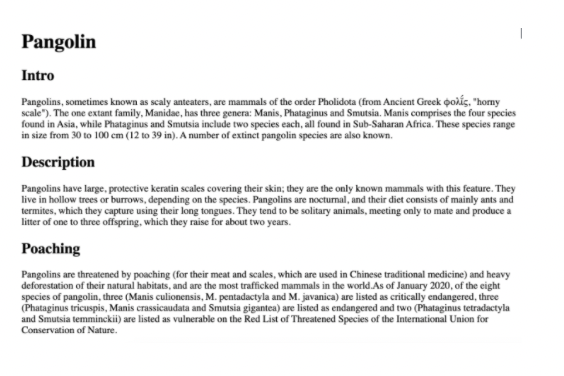
<h1>Pangolin</h1>

<h2>Intro</h2>

<p>
    Pangolins, sometimes known as scaly anteaters, are mammals of the order Pholidota (from Ancient Greek φολῐ́ς, "horny scale"). The one extant family, Manidae, has three genera: Manis, Phataginus and Smutsia. Manis comprises the four species found in Asia, while Phataginus and Smutsia include two species each, all found in Sub-Saharan Africa. These species range in size from 30 to 100 cm (12 to 39 in). A number of extinct pangolin species are also known.
</p>

<h2>Description</h2>

<p>
    Pangolins have large, protective keratin scales covering their skin; they are the only known mammals with this feature. They live in hollow trees or burrows, depending on the species. Pangolins are nocturnal, and their diet consists of mainly ants and termites, which they capture using their long tongues. They tend to be solitary animals, meeting only to mate and produce a litter of one to three offspring, which they raise for about two years.
</p>


<h2>Poaching</h2>

<p>
   Pangolins are threatened by poaching (for their meat and scales, which are used in Chinese traditional medicine) and heavy deforestation of their natural habitats, and are the most trafficked mammals in the world.As of January 2020, of the eight species of pangolin, three (Manis culionensis, M. pentadactyla and M. javanica) are listed as critically endangered, three (Phataginus tricuspis, Manis crassicaudata and Smutsia gigantea) are listed as endangered and two (Phataginus tetradactyla and Smutsia temminckii) are listed as vulnerable on the Red List of Threatened Species of the International Union for Conservation of Nature.
</p>
(6) 크롬 개발자 도구 : Inspector
오른쪽 클릭 후 Inspect 클릭 시 페이지의 숨은 HTML 코드가 나온다.
수정할 수도 있으니 연습해볼 것. + 새로 고침을 하거나 뒤로 가기 하면 사라진다.
현재 내가 사용하고 있는 컴퓨터 화면에서만 바뀌는 것.
맥북 기준 단축키 : cmd+option+c
(7) HTML의 골자 = 상용구
<html> : 루트 요소 (근간이 되는 부분) , 모든 html 요소는 이 태그 안에 들어가야하며 하나의 head와 하나의 body로 이루어져있다.
<head> : 메타데이터 요소, 페이지 상에 보이지 않는 내용을 담고 있다. 웹 페이지와 스크립트에 대한 모든 메타 데이터 정보. (css 스타일 속성 등을 담는 곳이다.)
<title> : 브라우저 탭 상에 표시되는 요소이다.
<body> : 웹페이지 상에 표시될 정보를 넣는 태그이다.
4번에서 연습했던 예제를 html로 정의해주자.
웹페이지 상에서 보이는 내용은 달라지지 않지만 개발자 도구에서는 구조적 차이점을 볼 수 있다.
<!DOCTYPE html> <!-- 닫는 태그 없음. 표식으로 적용-->
<html>

<head>
    <title>Chicken - Coltipedia</title>
</head>

<body>

    <h1>Chicken</h1>

    The <b>chicken</b> (Gallus domesticus) is a domesticated species that arose from the red junglefowl, originally from
    Asia.

    <p>
        They have also partially hybridized with other wild species of junglefowl (the grey junglefowl, Ceylon
        junglefowl,
        and green junglefowl).[1] Rooster and cock are terms for adult male birds, and a younger male may be called a
        cockerel.
    </p>

    <h2>terminology</h2>

    <p>Lorem ipsum dolor sit amet consectetur adipisicing elit. Dolores distinctio perspiciatis quidem, nulla voluptas
        dolorem illum laudantium maxime? Dolores nulla expedita nam veritatis vero eos culpa saepe? Ex, saepe
        velit?Doloremque sunt ullam doloribus recusandae et libero magni voluptates illo asperiores ea ducimus
        laboriosam ab
        distinctio commodi fuga repellat consequatur repellendus, iusto soluta architecto. Dignissimos consectetur
        assumenda
        aliquam eos provident. Ut inventore quod explicabo magnam quisquam natus quibusdam, maiores vel vero cumque at
        qui
        libero consectetur doloribus voluptates deserunt ab deleniti delectus dolores quidem cum rerum. Provident libero
        optio ea.</p>

    <h2>General biology and habitat</h2>

    <h3>Behavior</h3>

    <h4>Social behaviour</h4>

    <h4>Broodiness</h4>

    <h5>I AM H5</h5>

    <h6>I AM H6</h6>

    <p>Lorem ipsum dolor sit amet, consectetur adipisicing elit. Nobis velit consequatur dolor rerum numquam eum odio,
        vel
        illo quia hic sapiente dolore quisquam, voluptatum quibusdam dolores magnam repellat iure autem?
        Iure amet corrupti aspernatur. Error architecto necessitatibus neque dolore omnis porro explicabo beatae
        assumenda
        tempore, quasi quod asperiores, quia, ex perferendis nostrum modi. Dicta fuga odio cumque dolorem, officiis
        dolorum!
        Magnam eos unde aperiam suscipit minus culpa alias aliquid similique eaque fugiat atque iure optio fuga magni
        natus
        error in, porro doloremque ea ut. Deleniti dolores in libero soluta magnam.</p>
</body>

</html>
[ 막간 TIP ]
vs code 상에서 빈 파일에 느낌표를 입력 후 Tab을 누르면, html 상용구를 자동으로 생성해준다.
다음과 같은 코드가 자동으로 생성된다.
<!DOCTYPE html>
<html lang="en">
<head>
    <meta charset="UTF-8">
    <meta name="viewport" content="width=device-width, initial-scale=1.0">
    <title>Document</title>
</head>
<body>

</body>
</html>
(8) vs code에서 보기 좋게 정렬하는 방법 (2가지)
(1) 맥북 기준 : cmd+shift+p 입력 후 format document 검색 엔터 (단축키 : option+shift+f) 누르면 간단 정렬을 해준다.
(2) 저장할 때마다 자동 포맷팅 되게 설정 : Settings - format 검색 후 Format on Save에 체크 표시한다.
(9) 목록 요소
<ol> : 숫자로 표시되는 목록
<ul> : 점으로 표시되는 목록
부모 목록이 있고 하위 요소로 <li> 태그를 사용하여 아이템을 넣음
[막간 TIP]
복사하려는 방향에 따라 Shift+option+화살표를 누르면 코드 복사 가능 (<li>태그를 늘리고 싶을 때 사용)
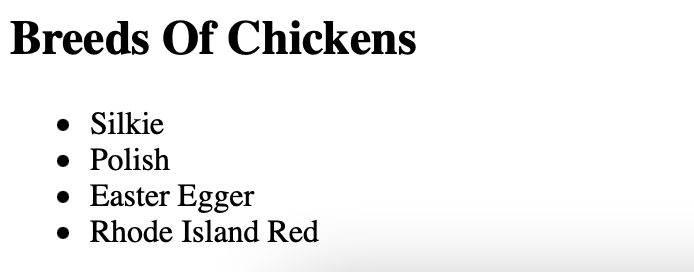
예제 풀어보기 : <ul> 태그 사용
<h2>Breeds Of Chickens</h2>
    <ul>
        <li>Silkie</li>
        <li>Polish</li>
        <li>Easter Egger</li>
        <li>Rhode Island Red</li>
    </ul>
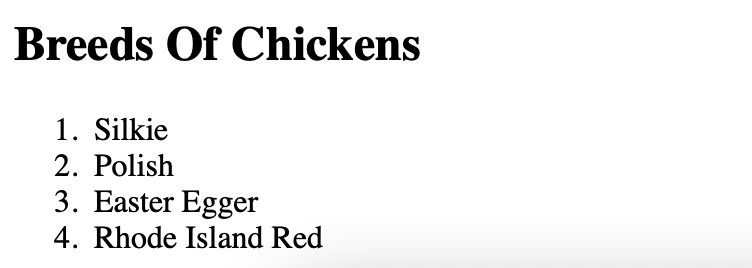
예제 풀어보기 : <ol> 태그 사용
<h2>Breeds Of Chickens</h2>
    <ol>
        <li>Silkie</li>
        <li>Polish</li>
        <li>Easter Egger</li>
        <li>Rhode Island Red</li>
    </ol>
예제 풀어보기 : <ul> 태그 안에 <ol> 태그 사용
<h2>Breeds Of Chickens</h2>
    <ul>
        <li>Bantam</li>
        <ol>
            <li>Silkie</li>
            <li>Polish</li>
        </ol>
        <li>Standard</li>
        <ol>
            <li>Easter Egger</li>
            <li>Rhode Island Red</li>
        </ol>
    </ul>
<ul> 태그와 <ol> 태그 사용 및 <li> 태그 단축키 실습 완료
(10) 이미지를 보고 코드로 재현하기

<h1>Movies</h1>
<h2>My Top 3 Movies:</h2>

<ol>
    <li>Amadeus</li>
    <li>Stand By Me</li>
    <li>Amelie</li>
</ol>

<h2>Other Good Movies:</h2>

<ul>
    <li>Alien</li>
    <li>Parasite</li>
    <li>Annie Hall</li>
</ul>
(11) 앵커 <a>태그
<a> 태그 : 태그를 통해 다른 웹페이지나 이메일 주소, 파일 혹은 현재 페이지의 다른 위치로 연결할 수 있다.
단순히 a 태그 만으로는 링크를 넘길 수 없다. 여기서 우리는 속성이라는 개념을 필요로 하게 된다.
HTML의 속성이란 태그에 부여할 수 있는 작은 정보를 의미한다. 여는 태그와 닫는 태그의 사이가 아닌 둘 중 하나에 들어가게 된다.
<a> 태그에서 사용할 속성은 href라는 속성이다.
앵커 태그로 만드는 모든 하이퍼링크에는 href(=hypertext reference)라는 속성이 들어간다.
<a href="http://www.google.com">I AM A LINK!!</a>
[ 막간 TIP ]
여기서 링크를 google.com 이라고만 작성하면 로컬 파일이라고 판단한 컴퓨터가 파일을 찾을 수 없다는 오류 메시지를 보내게 된다. 실습을 위해서 쓰고 있는 html 파일은 로컬 프로토콜을 사용하기 때문이다. 따라서 웹사이트로 가려면 http 프로토콜의 google.com이라는 웹페이지를 호출함을 정확히 명시해야한다.
로컬 파일 내에 있는 또다른 html 파일을 입력 시엔 상대 경로에 유의하여 작성해줘야한다.
앵커 태그는 인라인 태그에 해당하기 때문에 새로운 줄을 차지하지 않는다. (= 볼드 처리 요소와 유사하다고 생각하자.)
(12) 이미지 <img>태그
열고 닫는 태그가 없는 첫 번째 인스턴스이다. 이미지 자체에는 텍스트와 내용이 없으면 그저 img를 적으면 된다.
그리고 src라는 속성을 부여해준다.
속성에는 (1) 로컬 파일 이미지를 넣어주거나, (2) 절대 혹은 상대 경로에 맞춰 이미지 링크를 넣거나, (3) 웹페이지 이미지 링크를 넣어도 좋다.
<img src="steve_chicks.jpg">
<img src="https://upload.wikimedia.org/wikipedia/commons/b/b8/Cascais_Costa_do_Esteril_52_%2836583204550%29.jpg">
하지만 만약 이미지를 파일에서 제거하거나, 웹사이트 이미지 링크가 손실되었을 경우를 대비하여 이미지 주석을 남기는 속성이 있다.
바로 alt 특수 속성이다. 텍스트로 된 이미지 설정을 제공한다.
실습을 해보고 싶다면 잘못된 파일명을 입력한 뒤에 해본다.
 <img src="steve_chick.jpg" alt="My pet chicken, Steve chicks.">
 <img src="https://upload.wikimedia.org/wikipedia/commons/b/b8/Cascais_Costa_do_Esteril_52_%2836583204550%29.jpg">
실행 화면은 아래에서 확인해볼 수 있다.

(13) HTML의 주석
브라우저에는 보이지 않는 텍스트를 문서에 작성하는 것으로 HTML에서는 <!-- (내용) --> 으로 작성한다.
vs code 단축키로도 작성 가능하다 : cmd + / 라고 입력하면 주석을 지정하거나 해제할 수 있다.
'공부 일지 (개발) > 웹 개발일지' 카테고리의 다른 글
| 모던 자바스크립트 Deep Dive : 1장 - 프로그래밍 (0) | 2023.06.28 |
|---|
